
v9.X To 10.2.4 Upgrade Guide: F5 LTM Load Balancing Methods
Chris Spillane urges the upgrade of your version 9.x of F5 and provides a concise guide for the upgrade to version 10.2.4. Chris is a Senior Security Analyst at NTT Com Security and has been working with F5 Load Balancers for more than seven years.


Notice: This blog post was originally published on Indeni before its acquisition by BlueCat.
The content reflects the expertise and perspectives of the Indeni team at the time of writing. While some references may be outdated, the insights remain valuable. For the latest updates and solutions, explore the rest of our blog
 Key takeawaysKey takeaways are generated with AI assistance. Because automated summaries can occasionally contain errors or miss important context, always refer to the full blog post for complete information.
This article is a practical upgrade guide for migrating F5 LTM appliances from 9.x to version 10.2.4, addressing security risks and feature limitations of legacy 9.x releases and emphasizing platform prerequisites, backups, and license reactivation. It outlines the supported hardware, necessary intermediate versions (you can only jump directly from 9.3.x or 9.4.x), and a step-by-step install path including image installation, filesystem formatting options, and post-upgrade tasks such as loading configs, setting HA peer management addresses, and applying hotfixes. Following these steps reduces operational risk, preserves configuration, and ensures the upgraded unit can properly participate in HA pairs and use newer features like iHealth®.
What prerequisites must I check before attempting to upgrade an F5 unit to 10.2.4?
Before upgrading to 10.2.4 you must confirm the hardware platform is supported (see AskF5 SOL9412) and that your current software is either 9.3.x or 9.4.x—earlier 9.x releases must first be upgraded to 9.3.x/9.4.x. You must re-activate the unit license prior to upgrading (see AskF5 SOL7727). Read the release notes for the target version, ensure you have access to required AskF5 links (AskF5 login may be needed), and if running ASM, plan to back up ASM policies. Finally, plan to work on the standby unit in an HA pair and disconnect unnecessary cables during the upgrade.
What backups and preparations are required to preserve configuration and enable rollback?
The guide mandates backing up everything: bigip.conf, bigip_base.conf, bigip.license, bigip_sys.conf (if present), wideip.conf (if present), an SCF export (bigpipe export .scf) and a UCS archive. Note that UCS captures admin/root passwords and the license, so take UCS after license reactivation. Save backups off-box and also place the UCS in /shared/ and /var/local/ucs (create /shared/ if needed). If running ASM, take a policy backup. If using ‘–nomoveconfig’ during image2disk, be aware it preserves the target boot location configuration but should not be used with ASM—use a UCS instead.
What are the key command and image2disk options and HA steps to complete the upgrade?
Copy the 10.2.4 ISO to /shared/images (SCP recommended). Install image2disk with: im /shared/images/. Use image2disk to write the image to the inactive partition; for volume-formatting (recommended if moving to 10.x only) use –format=volumes. If keeping 9.x and 10.x, use –format=partitions (you’ll need to reinstall 9 to a free partition afterward). To preserve existing config (non-ASM), use –nomoveconfig with –format=volumes. Note that for 10.2.x the –instslot flag is not permitted—10.2.x installs to HD1.1 after formatting. After install the unit reboots; you may need to run switchboot and full_box_reboot, wait for filesystem build, then upload UCS or config files and reboot if necessary. For HA, failover to the upgraded unit during a maintenance window, verify traffic processing, then upgrade the peer. Also configure peer management addresses under System > High Availability > Network Failover to avoid periodic log messages (see AskF5 SOL9947).
F5 LTM Load Balancing Methods: Guide on How to Upgrade to 10.2.4
Unfortunately there are still a lot of F5 ® version 9.x installations out there, and there shouldn’t be. Not only is version 9 a long way out of support, it’s really not secure in this day and age. You’re also missing out on using iHealth® which can only be used from version 10.x onwards.
Please note that you may need AskF5™ login credentials to access some of the links within this article. If you do not have an AskF5 login you can request one here.
This guide assumes an upgrade to version 10.2.4 unless otherwise stated, although the same process applies to earlier 10.x versions. Note that 10.0.x releases are no longer supported. 10.2.4 is the recommended version for this branch and is supported to 31st December 2016 (see AskF5 SOL5903).
Prerequisites:
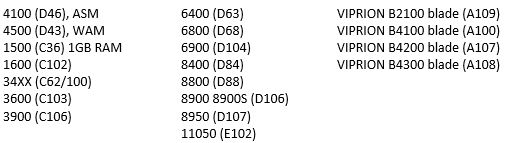
Before considering upgrading, ensure your hardware platform will support 10.2.4 code. The following platforms support it, as confirmed by AskF5 SOL9412:
You can only upgrade directly to 10.2.4 code from 9.3.x or 9.4.x releases. If you are running an earlier 9.x release, you must upgrade to 9.3.x or 9.4.x before continuing.
Before you begin
Assuming you meet the prerequisite requirements, consider the following:
- YOU MUST re-activate the unit license before upgrading. See AskF5 SOL7727 for reasoning.
- Backup EVERYTHING: /config/bigip.conf, bigip_base.conf, bigip.license, bigip_sys.conf (if it exists), wideip.conf (if it exists), take an SCF* (recommended, but only backs up LTM configuration), take a UCS (note that UCS also saves admin/root passwords and the license, so take this after license reactivation). Save these off box. Also save the UCS file to /shared/ (you might need to create this directory) and to /var/local/ucs. An extra 10 minutes spent here can save agony later on! If you are running ASM, also take a backup of the policy.
*to take an SCF, use the command:
# bigpipe export <filename.scf>
for example:
# bigpipe export mybackup.scf
- You should still read the release notes for the version you are installing.
- If you have a HA pair, you will, of course, be working on your standby unit.
- It is recommended to disconnect any unnecessary cables from a unit whilst upgrading (only leave connected the cables you need, such as the management cable). This will prevent any issues with the unit attempting to process traffic whilst upgrading.
Let’s upgrade
1) Download the 10.2.4 ISO and copy* to /shared/images (create this folder if it does not already exist).
*SCP is the recommended method to copy files to/from the BigIP system. For a Windows client, check out WinSCP
2) Install the image2disk utility:
# im /shared/images/<filename.iso>
for example:
# im /shared/images/BIGIP-10.2.4.577.0.iso
3) Begin the install. The full command syntax is
# image2disk --instslot=HD<slot_number> --format=<format_style> <downloaded_filename.iso>
BUT WAIT! Observe the following options first:
- Assuming you only want version 10.x and above from now on (highly recommended!), we need to format for volumes, so use:
# image2disk --instslot=<slot_number> --format=volumes /shared/images/>filename.iso>
- Assuming we wish to run version 10 and version 9 (not recommended, version 9.x is not supported), use:
# image2disk --instslot=<slot_number> --format=partitions /shared/images/>filename.iso>
Note that since we repartition, we will need to reinstall version 9 to a free partition after the version 10 installation completes.
- To preserve your existing configuration, use
# image2disk --instslot=<slot_number> --nomoveconfig--format=volumes /shared/images/<filename.iso>
DO NOT use the ‘–nomoveconfig’ flag if you are running ASM. Use a backup UCS instead. Using ‘–nomoveconfig’ means: “The configuration of the target boot location (if any is present) is re-installed on the target boot location after re-imaging is complete.”
The ‘slot_number’ variable will be HD1.1 or HD1.2 for example (the inactive partition, NOT the one you are currently running in*)
* If you are not sure which partition you are currently running on, use
# switchboot -l
- If installing 10.2.x the flag “–instslot=<slot_number>” is NOT permitted so should be absent from the command to install software. Reasoning: 10.2.x will always install to HD1.1 after the disk is formatted.
4) The unit should reboot and install the new software.
5) Once finished, you may need to do
# switchboot
and select the newly upgraded partition, then
# full_box_reboot
This depends on the specific upgrade version so may not be applicable. Install hotfixes at this point if necessary. It’s always recommended to be running the latest available hotfix.
6) Wait for the filesystem to build and the installation to finish. This first boot after upgrade can take a while!
7) Once the unit is up and running, load on any necessary config files. These can either be a UCS (User Configuration Set, aka ‘Archive’) uploaded via System > Archives, or can be individual bigip.conf, bigip_base.conf, bigip.license (etc) files, which should be uploaded to the /config directory using SCP. If you upload the individual configuration files, you’ll need to reboot again. Check the configuration is present and correct via the GUI. Cable the unit back up and you should be good to go. If you are running a HA pair, you should failover during a change window and check the newly upgraded unit processes traffic correctly. Assuming it does, repeat the upgrade process on your second unit.
8) Beginning with version 10.0.0 of the software, a redundant system configuration must contain failover peer management addresses for each unit. If you roll forward a redundant system configuration from 9.3.x or 9.4.x, the units start up correctly, but the system logs a message every ten minutes reminding you to configure the peer management addresses. To configure the failover peer management addresses, navigate to System > High Availability > Network Failover, then specify the management IP address of the peer unit in the Peer Management Address field. Then do the same on the other unit in the configuration. Once you specify both IP addresses, the system should operate as expected. For more information, see AskF5 SOL9947.
You’re all done!
Chris Spillane is a Senior Security Analyst at NTT Com Security. He has been working with F5 Load Balancers for more than seven years. If you want to contribute as well, click here.
Find more tip on how to manage your F5 load balancers with indeni.
Related content

Get answers from the LiveNX data you already have with LiveAssist
Learn how LiveAssist, the AI-powered add-on for LiveNX, turns your network data into fast, guided answers, with value you can see in days.

LiveWire GEN3 device offerings
BlueCat LiveWire is a packet capture and network forensics platform that provides deep packet-level visibility across hybrid enterprise environments to help…

Get total control of your DDI infrastructure with Micetro’s unified API
Stop juggling between network tools and use Micetro’s RESTful API for complete control over your DDI infrastructure and cloud environment.

BlueCat MCP servers bring network intelligence to your AI assistant
Our MCP servers provide a standard integration layer that makes it easy to connect the AI tools you already use to BlueCat products.