
Finding Your True IP Count



Notice: This blog post was originally published on Men&Mice before its acquisition by BlueCat.
The content reflects the expertise and perspectives of the Men&Mice team at the time of writing. While some references may be outdated, the insights remain valuable. For the latest updates and solutions, explore the rest of our blog
 Key takeawaysKey takeaways are generated with AI assistance. Because automated summaries can occasionally contain errors or miss important context, always refer to the full blog post for complete information.
This article explains how Micetro IPAM helps teams identify and remove stale or duplicate IP addresses to true up IP counts and avoid unnecessary charges. It describes prevention through automated lifecycle workflows, practical checks in the management console and web UI (root containers, address spaces, system settings, DHCPv6), and using DNS, discovery data, reports, and the new Global Object History to validate address usage. The article highlights operational actions (turn off unused DHCPv6, reconcile IPs, run cleanup scripts or use Professional Services) that reduce wasted address allocations and improve the accuracy of your Micetro single source of truth.
How can I find IPs that are not in child subnets using Micetro?
You can inspect the root containers (0.0.0.0/0 for IPv4 and ::/0 for IPv6) in the management console to find ranges with a yellow triangle (yield sign), which indicate rogue IPs or addresses not in a child subnet. Dive into those ranges to view properties such as “Last Seen”; values of “Never” or long-ago timestamps suggest the IPs may be stale. Note that the yellow yield icon is only visible in the management console, though you can view the same properties in the web UI for further validation.
What settings and services should I check in Micetro to avoid counting unused IPs?
Review System Settings in the 10.5 web UI under Configuration and the “Determine Address Usage” options to ensure appropriate criteria are selected for marking addresses as assigned. Verify whether DHCPv6 is actually needed; if not, disable it by navigating to Admin >> Service Management, editing the DHCP service, and deselecting “Manage DHCPv6.” Also check for overlapping definitions across multiple Address Spaces via the User drop-down (admin access required) to avoid doubling counts for the same devices.
Which tools in Micetro help confirm whether an IP address is actively used before cleanup?
Micetro surfaces multiple data points to validate usage: Related DNS data and DNS Name in the IPAM grid help identify descriptive records tied to an IP, and Discovery information provides last-seen evidence. Use the “IP reconciliation” report to list hosts not seen for a month, build custom reports from property metadata, and consult the Global Object History (Admin tab in 10.5) to search for errors or anomalies. If automating cleanup, create scripts and schedule them under Admin >> Event Hooks >> Scheduled Events, or engage Professional Services for complex scenarios.
Many IPAM solutions will charge by IP address, but what they won’t do is help you understand whether you’re actually using all your IPs. We always want to provide our users with the best experience possible which is why with Micetro there are a few ways you can check which IP addresses are actually being used and which may be stale.
This article will help you true up your IP count on your own, however, if you’re looking at a more complex scenario, our fantastic Professional Services team will give you confidence that what your IPAM solution is reporting is correct.
Prevention First
The first tip I’ll mention is that prevention is always better than reaction, but we know you all already know that. If you have the resources to set up automated lifecycle workflows, which include sunsetting services and IP cleanup, that’s going to be huge in making sure you’re building a single source of truth in your Micetro environment.
We know that prevention is just not possible all the time, though, because you’re working on multiple things all the time so here are some other tips if you find yourself getting underwater in your IP count.
Check for IPs in your root containers in IPAM.
For now this is only possible using the management console, and the root containers we’re referring to here are 0.0.0.0/0 for IPv4 and ::/0 for IPv6. Take a look at all the ranges in these containers and see if there’s a yellow triangle icon (yield sign). If you see a range with this sign, then you might have some rogue IPs, or IPs which are not in a child subnet. This is a great place to start.
You can also find containers with the yellow icon and dive deeper into the ranges. You’ll see “Last Seen” in the property headers and if it says “Never” or it’s been a long time, then it might be safe to get rid of those IPs (with some due diligence, of course). You can also check these properties in the web UI, however the yellow yield icon only shows up in the management console.


Using Multiple Address Spaces?
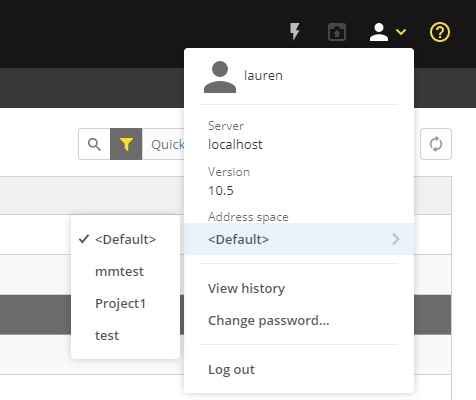
Another place you can quickly check is if you’re using multiple address spaces. Of course, Address Spaces allow you to have overlapping IP ranges and addresses if you need them, but if you’re defining the same ranges (for the same devices) in multiple ranges, that will quickly eat up your IP count. To check this you can click on the User drop-down menu and go to your different address spaces.
Note: you will only be able to do this if you are an admin with access to all of the address spaces.
Check your System Settings
In the 10.5 web UI you can check your System Settings under the Configuration tab.
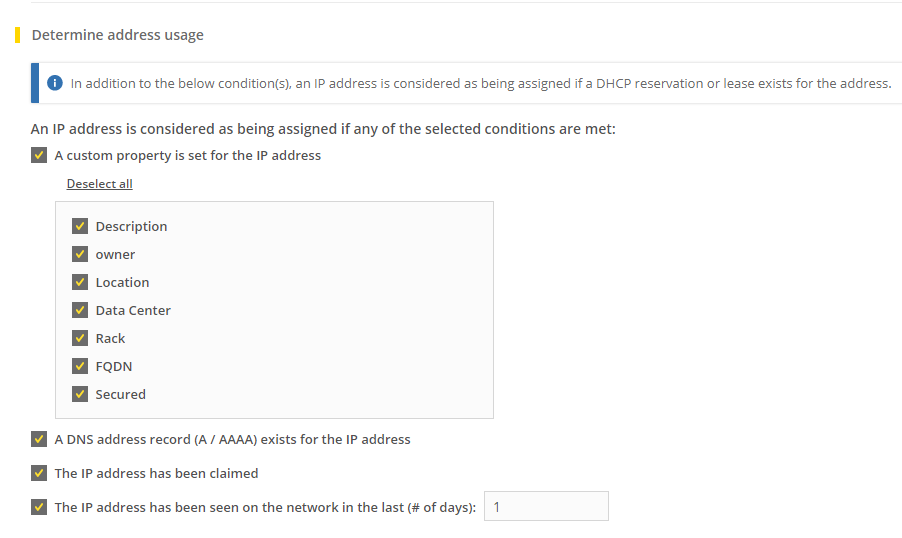
Under general scroll down to “Determine Address Usage” and make sure you check (and uncheck) all that apply.
Check Whether You’re Using DHCPv6 Unecessarily
As noted in the above screen shot, an IP address is considered as being assigned if a DHCP reservation or lease exists for the address. If you’re not using DHCPv6 in your environment, just turn that service off in Micetro.
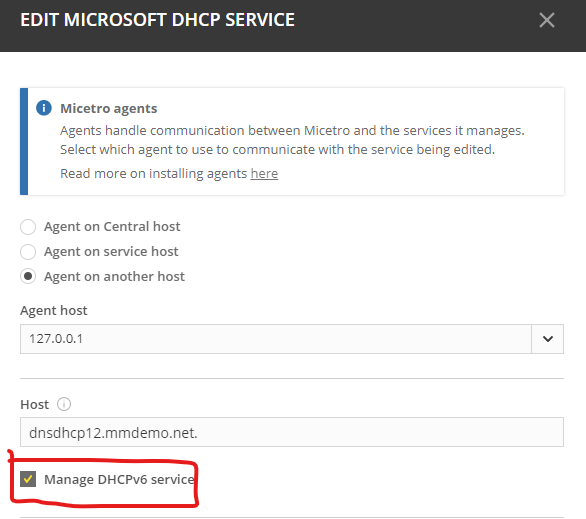
- Go to Admin >> Service Management
- Click on the meatball menu of a DHCP service
- Click on Edit Service
- Deselct Manage DHCPv6
Check for Related DNS Data
Micetro makes it possible to easily see if there’s any related DNS data for an IP address and what those DNS records are. Head back to the IPAM tab and click on a suspect range. You’ll not only see the DNS Name as a property within the header of the grid, you’ll also see Related DNS data if you click on an IP address in the bottom right. This will help you make quick decisions on whether this IP address is actually still being used, especially if you’re using descriptive DNS naming schemas.
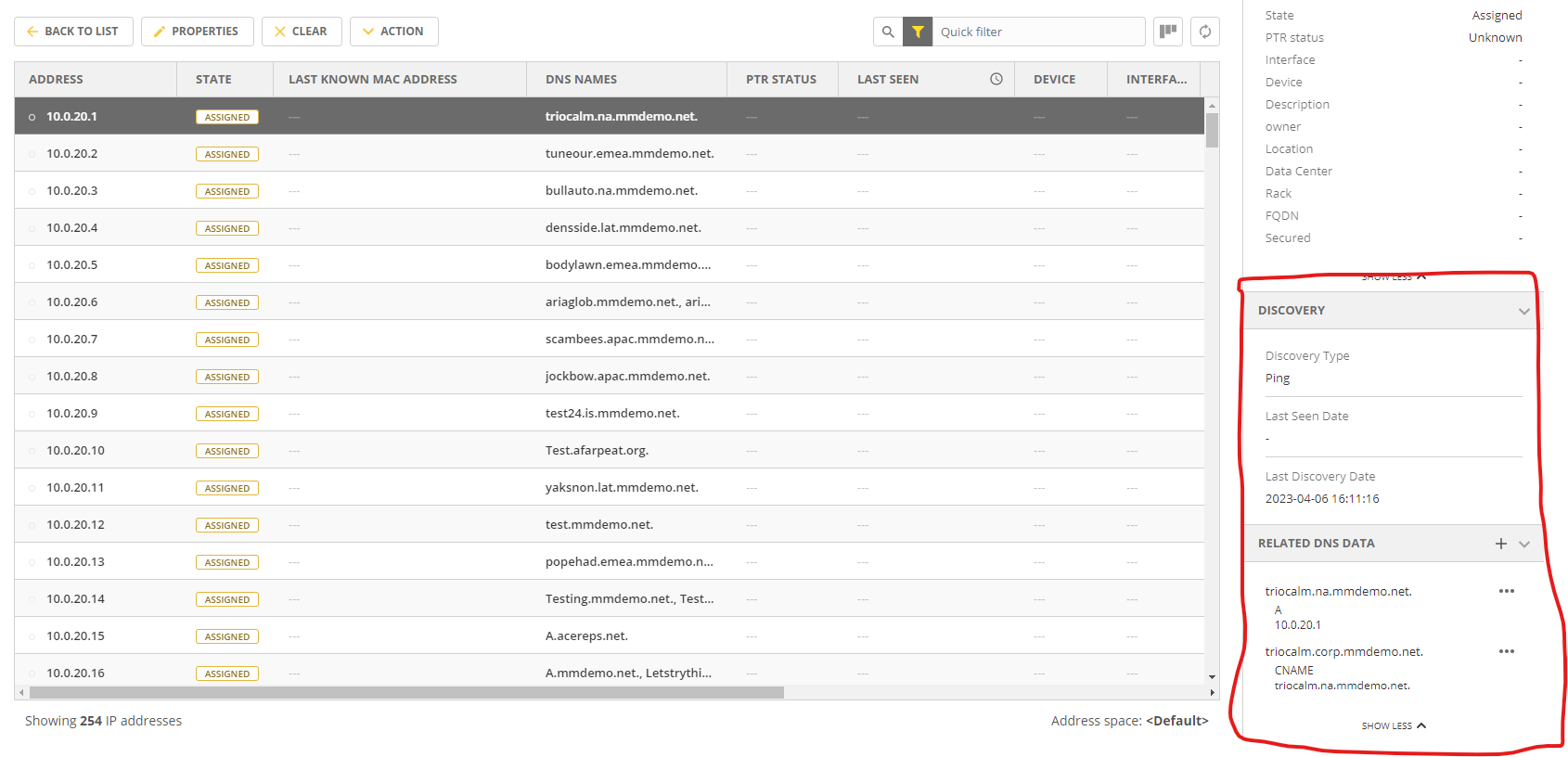
You’ll notice right above that you’ll see Discovery information as well, which can aid you in your decision-making.
Reporting and Object History
Of course, the good old fashioned reporting and logging tools might be helpful. You can use the “IP reconciliation” report to see hosts which haven’t been seen for a month or you can get creative and build a report using the meta data from the property fields.
In version 10.5 of Micetro there’s a Global Object History tab under the Admin tab now, which will also let you search for errors and report on anomalies.
Remember, if you can do it in the UI, you can probably do it in the API as well. If you create some cleanup scripts (or get help from PS to create some), you can run them under Scheduled Events by adding them under Admin >> Event Hooks >> Scheduled Events in version 10.5 of Micetro.
Related content

Get answers from the LiveNX data you already have with LiveAssist
Learn how LiveAssist, the AI-powered add-on for LiveNX, turns your network data into fast, guided answers, with value you can see in days.

LiveWire GEN3 device offerings
BlueCat LiveWire is a packet capture and network forensics platform that provides deep packet-level visibility across hybrid enterprise environments to help…

Get total control of your DDI infrastructure with Micetro’s unified API
Stop juggling between network tools and use Micetro’s RESTful API for complete control over your DDI infrastructure and cloud environment.

BlueCat MCP servers bring network intelligence to your AI assistant
Our MCP servers provide a standard integration layer that makes it easy to connect the AI tools you already use to BlueCat products.