
Palo Alto Networks Administration Basics



Notice: This blog post was originally published on Indeni before its acquisition by BlueCat.
The content reflects the expertise and perspectives of the Indeni team at the time of writing. While some references may be outdated, the insights remain valuable. For the latest updates and solutions, explore the rest of our blog
 Key takeawaysKey takeaways are generated with AI assistance. Because automated summaries can occasionally contain errors or miss important context, always refer to the full blog post for complete information.
This article is a practical getting-started guide for new Palo Alto Networks firewall administrators, covering initial account and license registration, CLI and GUI management setup, interface and zone configuration, object and policy creation, security profile usage, and commit processes. It addresses real-world needs for securely configuring management access, integrating syslog, classifying interfaces (Layer 2/3, Virtual Wire, TAP, HA), and building address objects, zones, security profiles and policies to control traffic between network segments. The outcome is a clear, step-by-step operational workflow that moves candidate configuration changes into the running configuration so administrators can validate and run their NGFW in production environments.
How do I register my Palo Alto Networks firewall and ensure licensing is activated?
The article instructs administrators to create a Palo Alto Networks Support account at https://support.paloaltonetworks.com and register devices by entering serial numbers and licenses under Assets > Devices using the Register New Device button. It notes that Palo Alto firewalls support both online and offline license activation, so after adding the device and license information in the support portal, follow the platform’s online activation flow or the documented offline activation steps if the device has no internet connectivity. Ensure the correct serial numbers from the purchase order email are used to link licenses to the designated firewall.
What are the recommended initial management and CLI configuration steps for the firewall?
From the CLI, connect via the physical console (baud 9600, 8-N-1, no flow control) and log in with the default admin/admin credentials. Enter configure mode, then set the management interface using set deviceconfig system ip-address netmask default-gateway dns-setting servers primary secondary , and commit to apply changes. In the GUI, change the default administrator password under Device > Administrators by editing the admin account. Adjust Management Interface Settings at Device > Setup > Management to limit permitted subnets and enable allowed services (for example the article shows permitted subnet 192.168.242.0/24 with HTTPS, SSH, and Ping).
How should I create interfaces, zones, address objects, and a security policy to allow traffic to an external site?
The article describes switching physical interfaces to Virtual Wire by editing Network > Interfaces (e.g., ethernet1/3 and ethernet1/4) and then creating a Virtual Wire under Network > Virtual Wires that binds those two interfaces. Create Zones at Network > Zones, selecting the appropriate type (Virtual Wire for the example) and assigning interfaces (e.g., Untrust for ethernet1/3 and Indeni-Ex Internal Side for ethernet1/4). Add an Address Object under Objects > Addresses for the external IP (67.222.18.206). Then create a Security Policy at Policies > Security: set Source Zone to Indeni-Ex Internal Side, Destination Zone to Untrust, add the Address Object as the destination address, select a Security Profile Group under Actions > Profile Setting, configure Log Forwarding to use the Syslog profile, and finally commit the changes so they move from the candidate config into the running configuration.

What is Palo Alto Networks?
Palo Alto Networks next-generation firewalls (NGFW) are security devices that possess a range of capabilities to meet current and future information security needs.
This blog provides the steps to get started on the path to becoming an exceptional Palo Alto Networks administrator.
Initial Steps of Palo Alto Networks
Take the following steps when preparing to manage a Palo Alto Networks firewall:
- Create a Palo Alto Networks Support account (https://support.paloaltonetworks.com) and input the corresponding serial numbers and licenses for the designated firewall(s) provided in the purchase order email by accessing Assets>Devices and clicking the Register New Device button.
Note: The Palo Alto Network firewalls support online and offline activation for licensing.
- CLI access:
- Physical Console: Baud Rate 9600 / Data Bits 8 / Parity None / Stop Bits 1 / Flow Control None
- Default Username and Password is admin and admin.
- Enter the configure command to go to configuration mode.
- Enter the set deviceconfig system ip-address x.x.x.x (management IP) netmask .x.x.x.x (subnet mask) default-gateway x.x.x.x (default gateway) dns-setting servers primary x.x.x.x (primary DNS server) secondary x.x.x.x (secondary DNS server).
- Enter the commit command to update the running configuration.
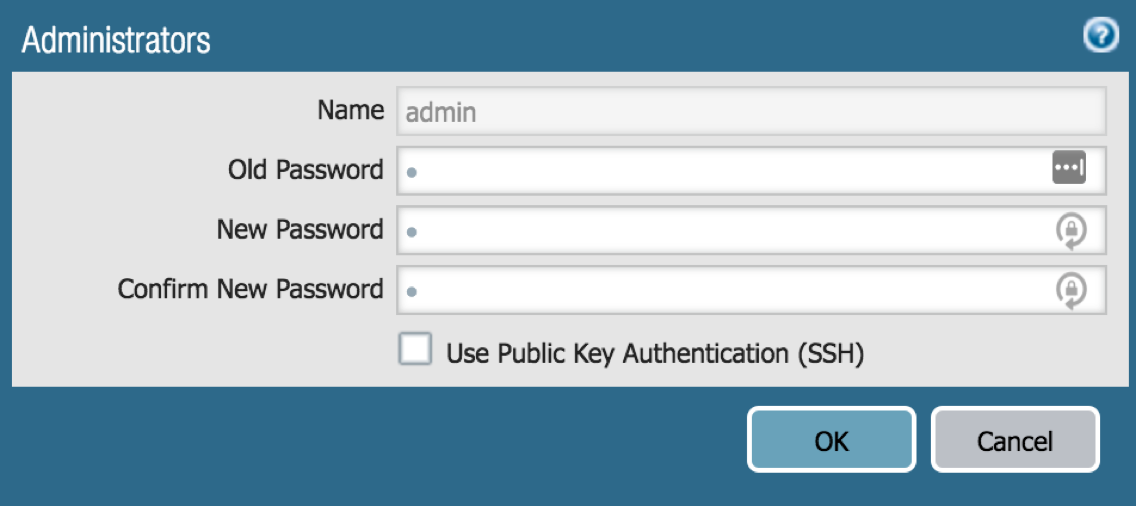
- Default Administrator Account Password
- Go to Device>Administrators and click on admin to change the Password from admin to a preferred local password.
- Management Interface Settings
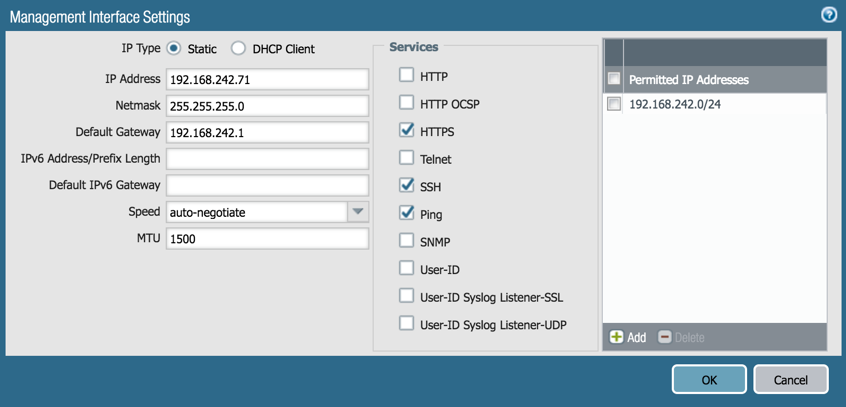
- Go to Device>Setup>Management>Management Interface Settings and click the gear symbol to change the addresses & subnets permitted to access the Management Interface and the services running on the interface.
Note: The permitted subnet is now 192.168.242.0/24 and HTTPS, SSH, and Ping are allowed
- Setting Up the Syslog Server
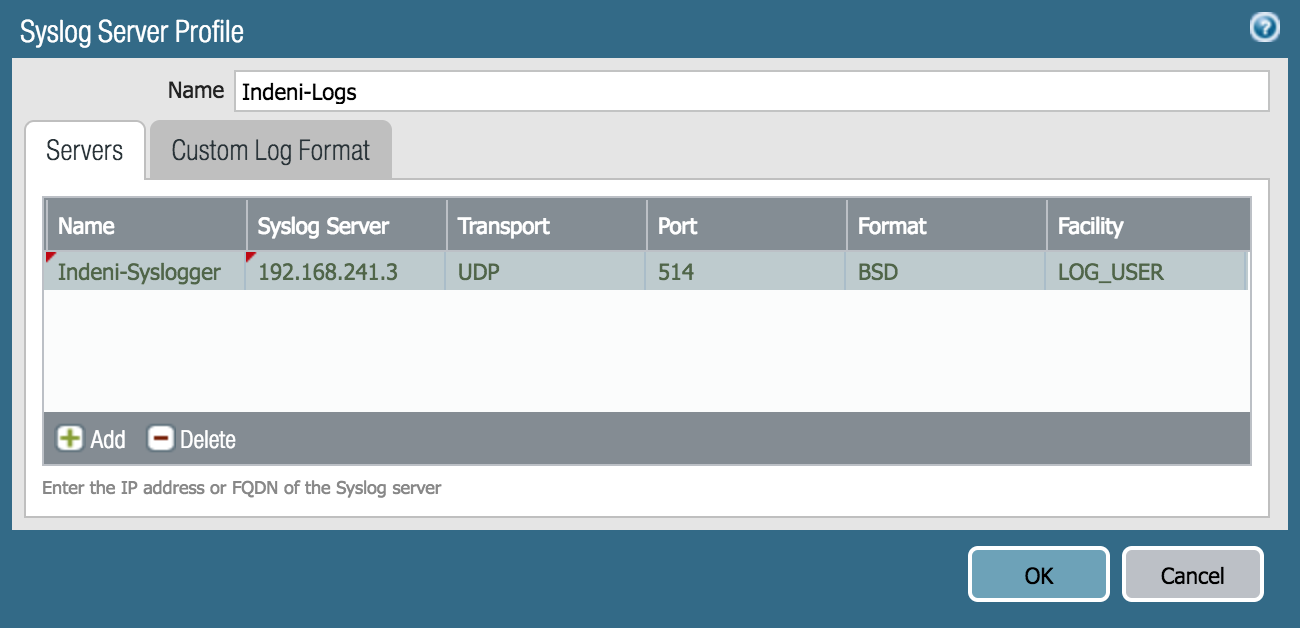
- Go to Device>Server Profiles>Syslog and click Add
- Enter a name for the Syslog Server Profile
- Click Add, update the Name and Syslog Server (IP or FQDN) fields with the server, and click the OK button
Traffic Interfaces
The following are the common interfaces types that allow for connectivity to other network devices:
- Tap – Monitors tapped traffic.
- Layer 2 – Operates at Layer 2 and requires an external routing device for communication among interfaces that are in different VLANs.
- Layer 3 – Operates at Layer 3, requires an IP address, and includes a virtual router instance on the NGFW. Use of this interface changes routing for adjacent network devices.
- Virtual Wire – Combines two Ethernet interfaces to operate as a “bump in the wire” that can pass a subset or all traffic through these ports without changes to routing for adjacent network devices.
- The two interfaces make up a Virtual Wire
- High Availability (HA) – Used to support the high availability (active/passive or active/active) settings for a pair of the same NGFWs devices (the same model, PAN-OS version, and other settings are required).
Note: Configure subinterfaces to segment traffic further for the physical Layer 2 and Layer 3 interface.
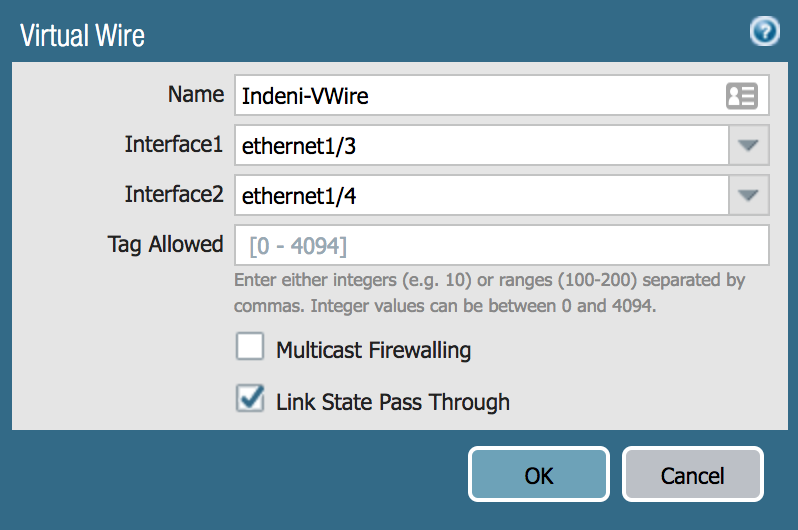
Let’s utilize ethernet1/3 and ethernet1/4 as a part of a Virtual Wire.
- Go to Network>Interfaces and click on ethernet1/3 and ethernet1/4 and change the Interface Type dropdown to Virtual Wire and click the Ok button.
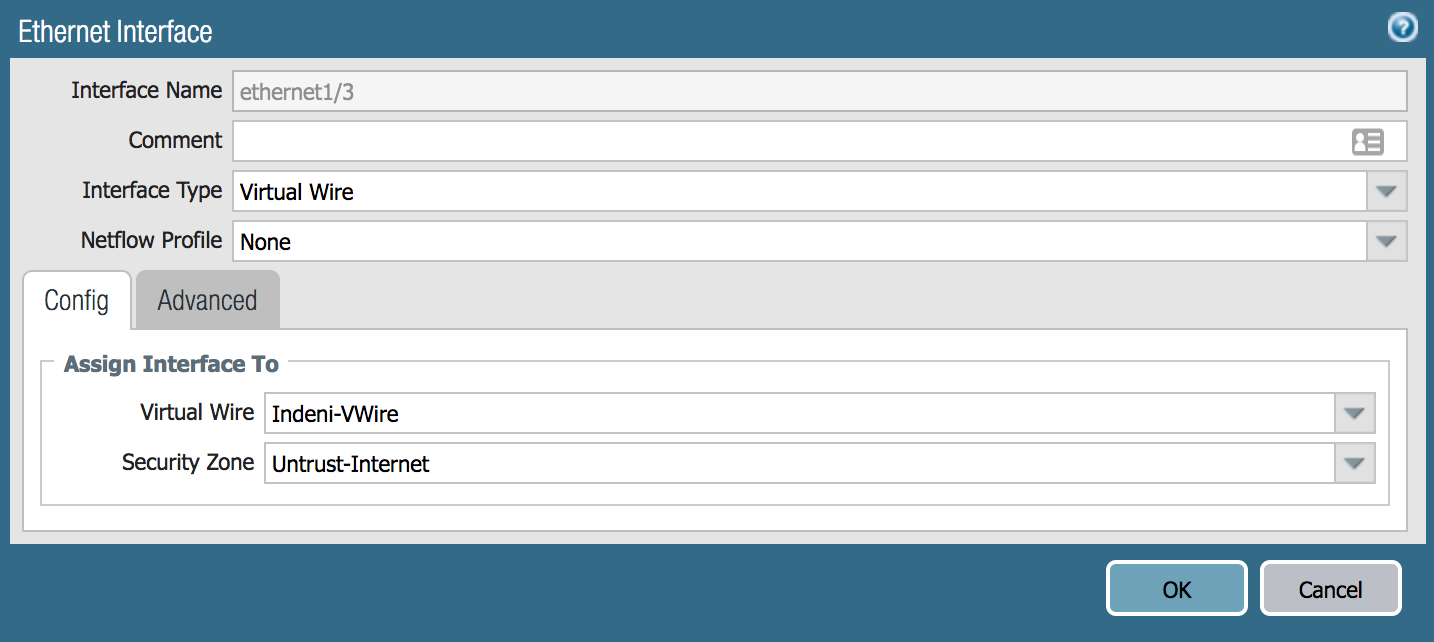
- Go to Network>Virtual Wires and click Add. Enter a name in the Name field and update the Interface1 and Interface2 dropdowns with ethernet1/3 and ethernet1/4.
Zones
Zones are a grouping of interfaces on the NGFW that correspond to a specific traffic segment.
Here is some important information to know about Zones.
- Zones can contain 1 or more interfaces
- Each interface can only be assigned to 1 zone
Also, the four Zone types correspond to four of the Interface types: TAP, Virtual Wire, Layer 2, and Layer 3.
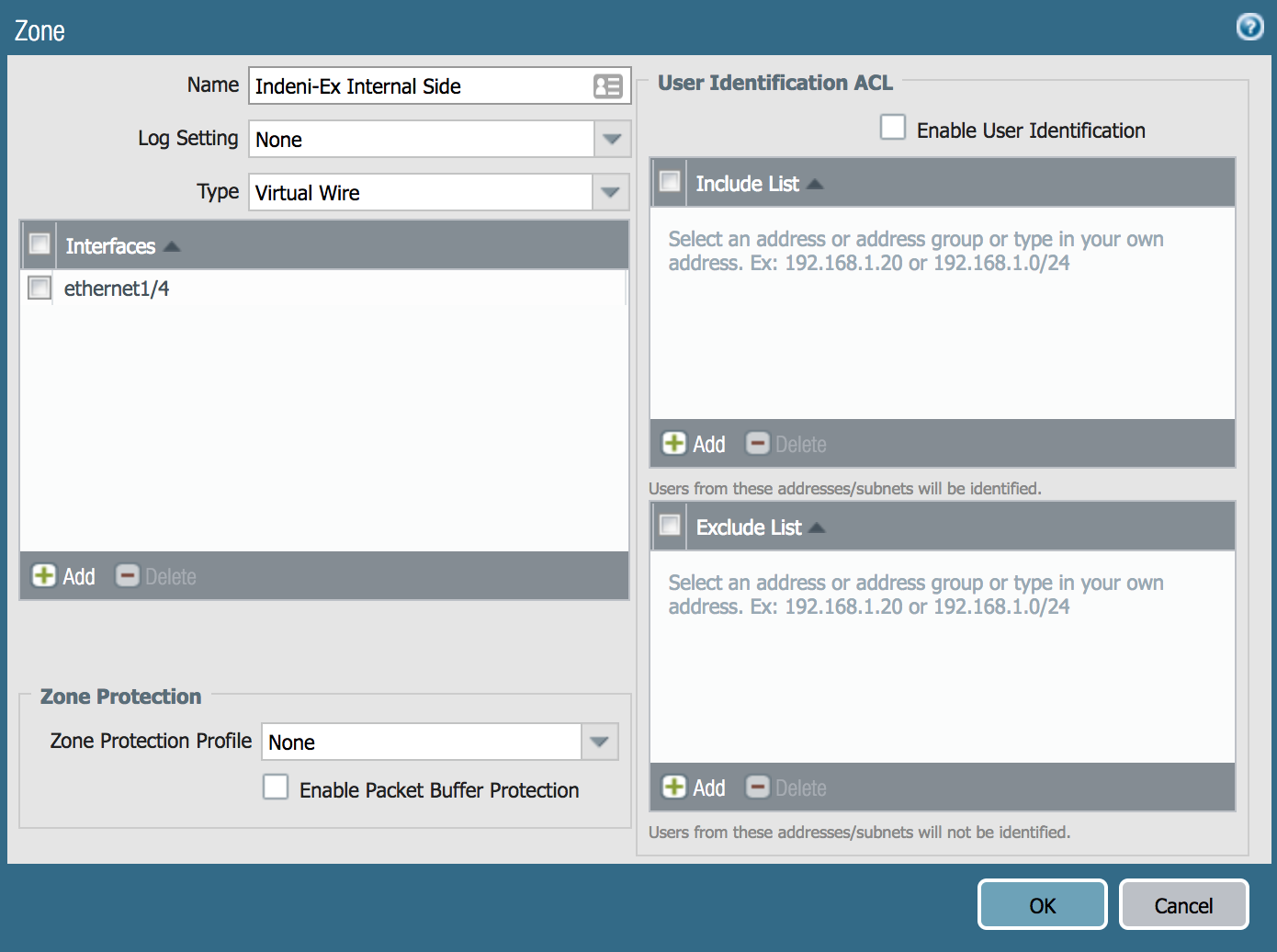
Let’s add ethernet1/3 to a Virtual Wire Zone named Untrust and ethernet1/4 to a Virtual Wire Zone named Indeni-Ex Internal Side.
- Go to Network>Zones and click Add
- Update the Name field
- Change the Type dropdown to Virtual Wire, click Add in the Interfaces section and click the OK button
Address Objects/Groups
Address Objects can be created to represent a single IP address or IP range to be referenced in Policies on the firewall (Security, NAT, etc.). Address Groups include multiple Address Objects.
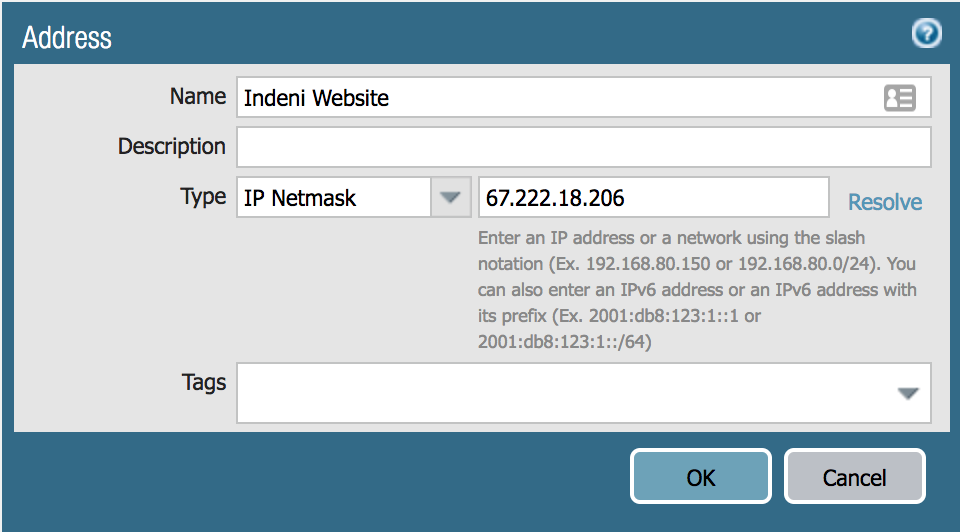
Let’s create an Address Object for 67.222.18.206 (indeni.com).
- Go to Objects>Addresses, click Add, and update the Name field.
- Enter 67.222.18.206 (field to the right of the Type dropdown) and click the OK button.
Applications/Services
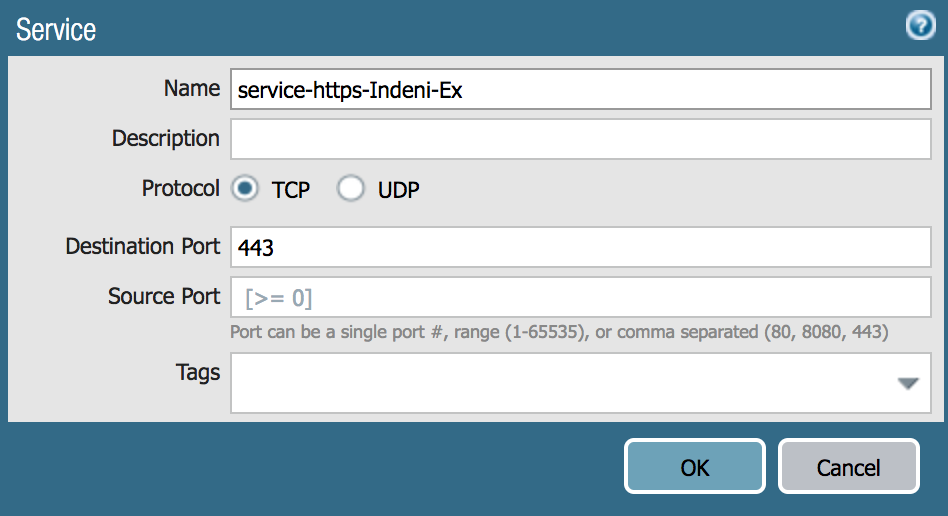
The Palo Alto Network NGFWs can traffic as an application or a service. Here is the information these two traffic classifications:
-
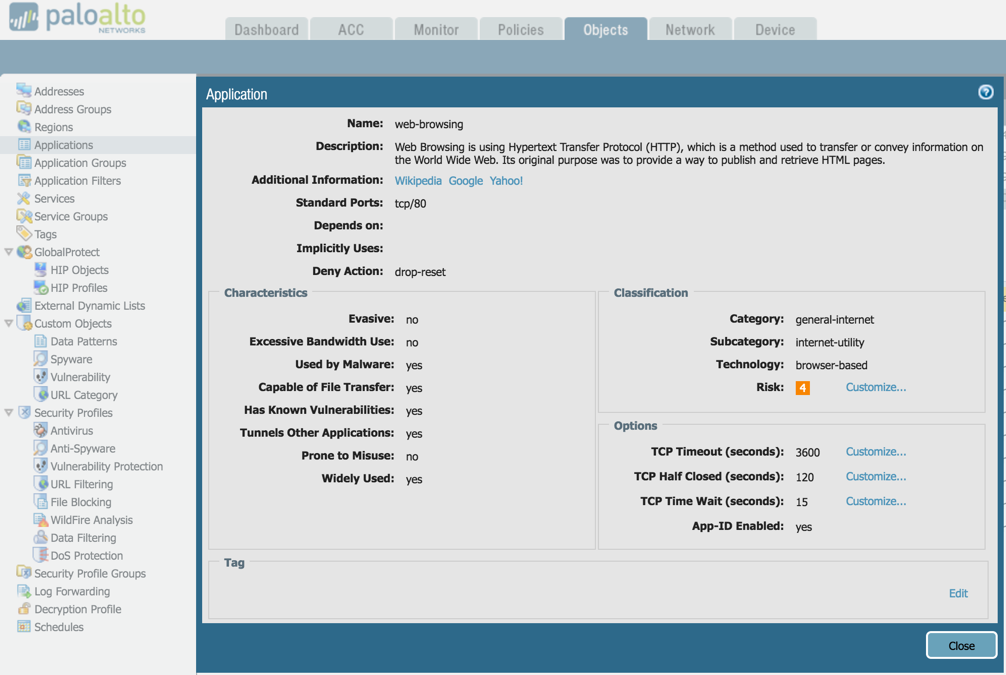
- Applications – App-IDs that identify the traffic regardless of the port utilized.
- Viewed at Objects>Applications and https://applipedia.paloaltonetworks.com
- Applications – App-IDs that identify the traffic regardless of the port utilized.
-
-
- Services – objects that identify traffic by protocol (TCP/UDP) and source/destination port(s).
-
Security Profiles
Security profiles scan security policies that have an action set to Allow (like an allow-if statement). The most commonly used security profiles are Antivirus, Anti-Spyware, Vulnerability Protection, URL Filtering, and WildFire. Here is information on these profiles and the associated subscription licenses.
-
-
- Threat Prevention License
- Antivirus Profile – protects against viruses, worms, and trojans as well as spyware downloads.
- Anti-Spyware Profile – identifies and prevents spyware on compromised hosts from successfully contacting external command-and-control (C2) servers.
- Vulnerability Protection Profile – foils attempts to exploit system flaws or gain unauthorized access to systems.
- URL License (PAN-DB or BrightCloud)
- URL Filtering Profile – enables the admin to monitor and control how users access the web over HTTP and HTTPS.
- WildFire License
- WildFire Analysis Profile – utilizes the PAN cloud-based malware-analysis environment to identify unknown malware, zero-day exploits, and advanced persistent threats (APTs) through static and dynamic analysis in a scalable, virtual environment.
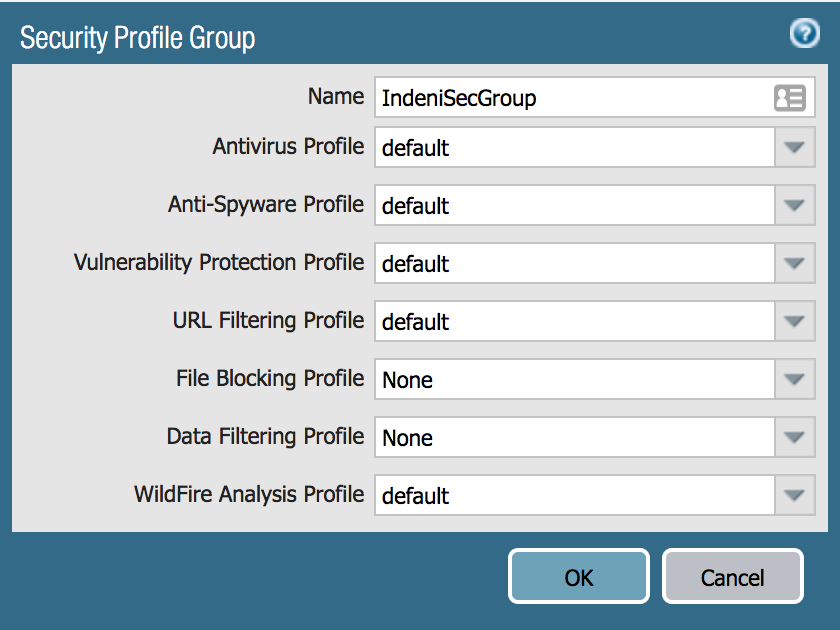
- Go to Objects>Security Profile Group, click Add, update the Name field, and select default for the Antivirus, Antivirus, Vulnerability Protection, URL Filtering, and WildFire Analysis Profiles, and click the OK button.
- Threat Prevention License
-
Security Policies
Security policies are processed from first-to-last and first match wins to allow or deny traffic.
There are three types of security policies:
-
-
- Intrazone – secures traffic flowing within a Zone and is allowed by the default security policy intrazone-default.
- Interzone – secures traffic flowing between Zones and is denied by default.
- Denied by the default security policy intrazone-default.
- Universal – secures both types of Zone traffic and is the default security policy type.
-
Let’s create a security policy that allows any traffic from the Indeni-Ex Internal Side Zone to the indeni.com Address Object within the Untrust Zone.
-
-
- Go to Policies>Security, click Add, and update the following tabs:
- General>Name field
- Source>Source Zone, click Add, and select Indeni-Ex Internal Side
- Destination>Destination Zone, click Add, and select Untrust & Destination>Destination Address, click Add, and select the Indeni Website Address Object.
- Actions>Profile Setting>Profile Type (Group) & Group Profile (name).
- Log Forwarding, click New Profile, update the Name field, select the Syslog profile under Traffic Settings, click the OK button for Log Forwarding and click the OK button for the Security Policy.
- Go to Policies>Security, click Add, and update the following tabs:
-

Commit
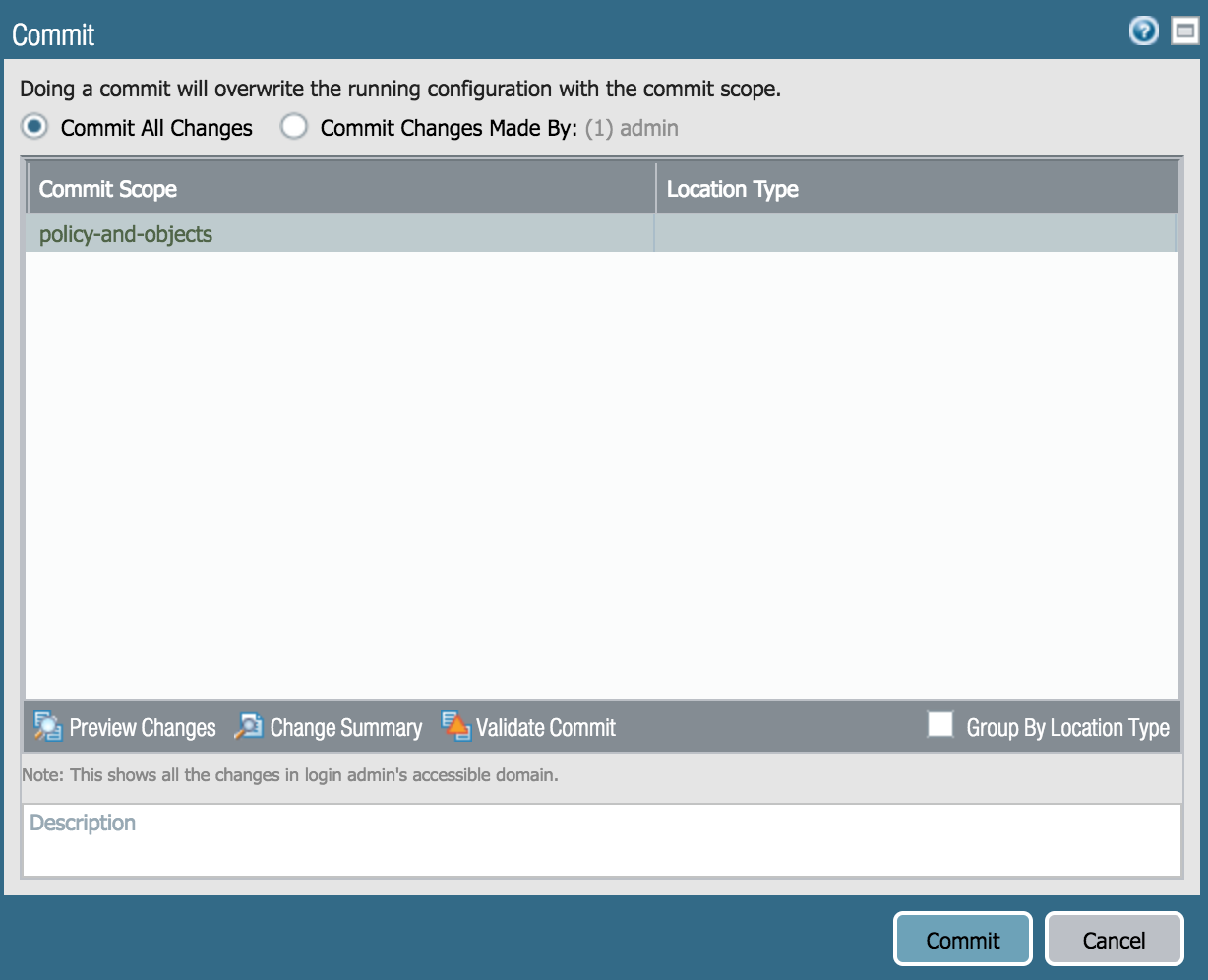
The majority of the changes made to the firewall configuration are added to the candidate config—a staging area for changes that yet to be made active—and need to be committed to be included in the running config.
To add changes to the running config:
-
-
- Click Commit
- Click the Commit button
-
Note: The Commit Status provides details on if the commit was successful.
We’re up and running…Let’s stay on track.
We just learned about change commitments for the Palo Alto Networks firewall. As a result, the configuration changes are literally operating in the running configuration. The information above introduced the initials steps for connecting to the firewall, the basics of firewall administration, and activating administrative changes. If more assistance is required, click on Help near the top-right of the GUI.
Have a great day!
This post was written by Indeni Crowd Community member, Paul Carter.
Connect with Paul and other Network Security experts today by joining Indeni Crowd, an IT professionals go-to for sharing best practices and building Network Security Automation scripts.
Related content

Get answers from the LiveNX data you already have with LiveAssist
Learn how LiveAssist, the AI-powered add-on for LiveNX, turns your network data into fast, guided answers, with value you can see in days.

Get total control of your DDI infrastructure with Micetro’s unified API
Stop juggling between network tools and use Micetro’s RESTful API for complete control over your DDI infrastructure and cloud environment.

BlueCat MCP servers bring network intelligence to your AI assistant
Our MCP servers provide a standard integration layer that makes it easy to connect the AI tools you already use to BlueCat products.
We bet on Intelligent NetOps two years ago. Infoblox now has too.
With Infoblox acquiring Kentik, BlueCat’s CEO confirms its vision for a single platform unifying DDI, network monitoring, and observability.