
Automating Configuration Backup


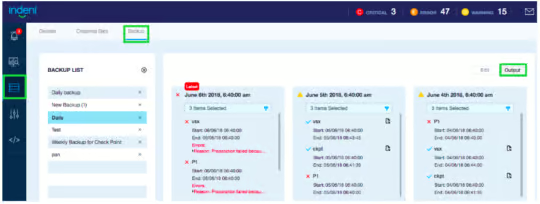
Notice: This blog post was originally published on Indeni before its acquisition by BlueCat.
The content reflects the expertise and perspectives of the Indeni team at the time of writing. While some references may be outdated, the insights remain valuable. For the latest updates and solutions, explore the rest of our blog
One of the most important tasks of a network and security administrator is to backup the configuration files of your device periodically. Frequency could be daily, weekly or monthly depending on your policy. In the unlikely event that your firewall should lose its configuration or require a factory reset, you can retrieve the configuration file from your backup server to restore the operational state of the network. We are excited to announce our new automated backup capability, introduced in Indeni Release 6.3.0.
A best practice is to backup a configuration remotely on a regular basis before and after you make changes to the configuration, or before performing a firmware or software release upgrade. It is always important to be able to rollback configurations to a previous state.
Indeni’s automated backup will save ten versions of the backup files. Configurations are saved as a plain, unencrypted text file.
In this initial release, we support Check Point GAiA firewalls. Indeni uses securely managed credentials and secure transports (SSH) to access each device and retrieve the configuration files.
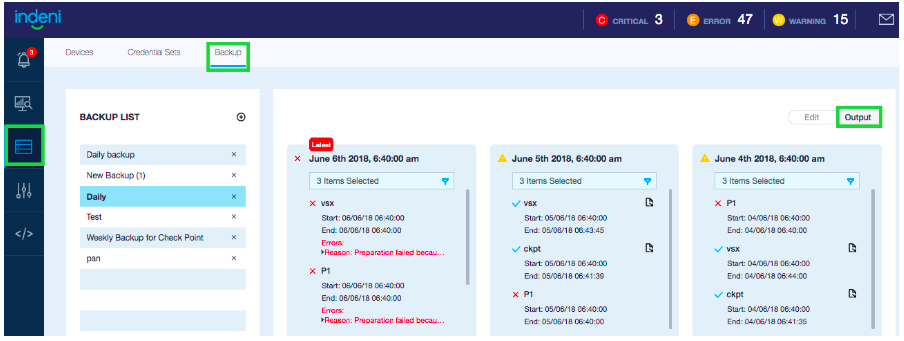
The commands used:
- Check Point GAiA
/config/active
cpbackup_util backup –file backup –type all
clish -c “show configuration”
In subsequent releases, we plan to add support for the following devices:
- Check Point 61k, Multi-Domain Security management and SmartCenter
- Cisco Nexus series switches
- F5 load balancers
- Juniper SRX firewall devices
- Panorama managed Palo Alto Network firewalls
Stay tuned for upcoming announcements regarding additional devices support in the coming months.
For more information about the new backup feature, please refer to the Indeni 6.0 User Guide – Device Backup.
 Key takeawaysKey takeaways are generated with AI assistance. Because automated summaries can occasionally contain errors or miss important context, always refer to the full blog post for complete information.
The article announces Indeni Release 6.3.0’s new automated remote configuration backup capability for network and security devices, addressing the real-world need to preserve device configurations for rollback or recovery after resets or upgrades. In this initial release Indeni supports Check Point GAiA firewalls, uses securely managed credentials and SSH to retrieve plain text configuration files, and stores up to ten previous versions. The feature reduces operational risk by enabling regular pre- and post-change backups, and the vendor plans to add support for additional devices (e.g., Check Point 61k, Cisco Nexus, F5, Juniper SRX, and Panorama-managed Palo Alto) in future releases.
Which devices are supported by Indeni’s automated backup in Release 6.3.0?
In Indeni Release 6.3.0 the automated backup capability initially supports Check Point GAiA firewalls only. The release retrieves configuration using commands specific to Check Point GAiA (cpbackup_util and clish show configuration). The article states that support for additional devices is planned for subsequent releases, but at launch only GAiA devices are covered.
How does Indeni retrieve and store configuration backups, and what security measures are used?
Indeni accesses devices over secure transports (SSH) and uses securely managed credentials to retrieve configurations. For Check Point GAiA the commands used are cpbackup_util backup –file backup –type all and clish -c “show configuration”; configurations are saved as plain, unencrypted text files. Indeni retains up to ten versions of backup files to enable rollback to previous states.
What operational practices does the article recommend around using the automated backup feature?
The article recommends backing up configurations remotely on a regular cadence—daily, weekly, or monthly depending on policy—and specifically before and after configuration changes or firmware/software upgrades. These best practices ensure an ability to rollback to a prior configuration if a device loses configuration or requires a factory reset. The automated feature supports these practices by storing multiple versions (ten) of plain text backups for recovery.

Ulrica de Fort-Menares is the Vice President of Product Management for Infrastructure Assurance.
Related content

Get answers from the LiveNX data you already have with LiveAssist
Learn how LiveAssist, the AI-powered add-on for LiveNX, turns your network data into fast, guided answers, with value you can see in days.

Get total control of your DDI infrastructure with Micetro’s unified API
Stop juggling between network tools and use Micetro’s RESTful API for complete control over your DDI infrastructure and cloud environment.

BlueCat MCP servers bring network intelligence to your AI assistant
Our MCP servers provide a standard integration layer that makes it easy to connect the AI tools you already use to BlueCat products.

We bet on Intelligent NetOps two years ago. Infoblox now has too.
With Infoblox acquiring Kentik, BlueCat’s CEO confirms its vision for a single platform unifying DDI, network monitoring, and observability.